Edit User Permissions
The permissions area is where the Primary User can manage Admin privileges, and Admin users can manage granular permissions for Regular subusers. There are a number of different roles that can be assigned.
Admin Access

Only the primary account has access to this function. Admin users have the following additional privileges:
Full “read-write” permissions to all resources.
Create and manage Regular subusers.
Create and manage Service Transfers.
View other Admin accounts (readonly).
If a user has Admin Access enabled, the rest of the permissions are not visible as they already have access to all resources.
Note
If Admin access is enabled, and then disabled, all permissions will be cleared for that user, as a security measure. New permissions will have to be set for the user.
Global Permissions
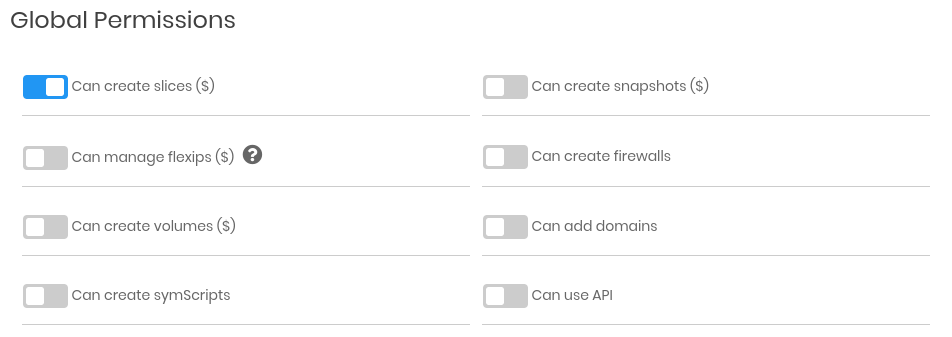
Global Permissions can be granted to Regular subusers to control what resources they are allowed to create. Whenever a Regular subuser tries to create a resource, their permissions are checked and they are only allowed to proceed if they have permissions to create that type of resource.
Admins can manage these permissions per-user, for the following resource types:
Slices
Snapshots
FlexIPs
Firewalls
Volumes
Domains
symBalancers
symScripts
Use API
To modify, enable the permissions you would like the user to have and click Update.
Note
Some of these might also require read/write permissions to an additional resource. For example, if a user wants to create a snapshot of a slice. They will need both create snapshot permissions, and read/write permissions to the slice. Resource-specific permissions are described in Specific Permissions below.
Billing Access

This is a separate role which allows to assign other users / departments access to the Billing area. There are three levels of access:
- None
The user cannot view any billing information.
- Read Only
Can view invoices and billing info.
- Read-Write
Can make payments, update contact and billing info, and receives copies of all billing related emails.
Tip
You can optionally create subusers with permissions billing only. For example if you have an accountant, you can grant them billing access to the panel to take care of all billing related matters on your behalf.
Specific Permissions
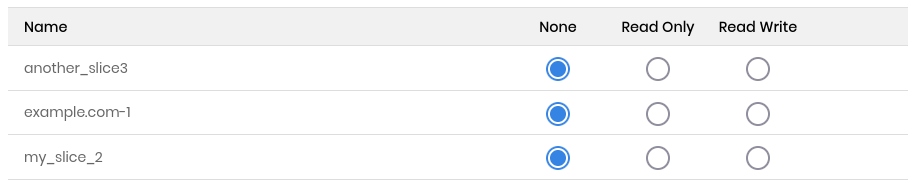
This area allows Admin users to set granular permissions for users for every resource in the account. There are three levels of access for each resource:
- None
User has no permissions. They do not see it in the panel and cannot access it.
- Read Only
Readonly permissions. The user sees the resource and information pertaining to it, but cannot make any changes.
- Read Write
The user has full panel access to the resource (rename, delete, etc.)
These permissions are effective per-user, and users also have readwrite permissions to any resources they create. Permissions to other users will need to be granted by a user with Admin privileges.
There is a selection box at the top of this area to quickly set all permissions to the same access level at once.
Note
If a user has create permissions for a resource type, they will have permissions to any resources they create. For example if they create a slice, they will have readwrite permissions for that slice.