Snapshots
Snapshots are on-demand backup images of your slice. You can use them to create new slices, or restore the slice they were created from. There are many possible uses for snapshots, such as:
Failsafe: Take a quick snapshot prior to doing any major upgrades or changes. In case anything goes wrong, you can use it to restore from a very recent backup.
Prebuilt “golden” images: Snapshot a slice preinstalled with any frameworks, packages etc. along with base configurations. You can use this image to quickly spin up identical copies, saving time on server configurations.
“Archive” Slices: Take a snapshot of a slice before deleting it, so you can resurrect it later in case you need it.
Note
Snapshots are a separate resource which are reserved to your account. Therefore, they are not deleted when the slice they were created from is deleted. They are managed separately in the Images area of the panel, as described below.
Create Snapshot
Although not necessary, it is recommended that you power off your slice before taking a snapshot. You don’t have to leave it powered off the entire time; you can power it back on once the snapshot process has begun.
To create a new snapshot, click the Create Snapshot button, and fill out the window that appears:
Select the slice you would like to take a snapshot of.
Enter a name for your snapshot.
Click Create
The new snapshot will show up in the Snapshots table below. For progress, we show a timer because it can vary substantially due to multiple factors like compression efficiency and current loads on the storage hosts. A pessimistic assumption would be 2GB per minute, but is usually much faster.
Snapshots List
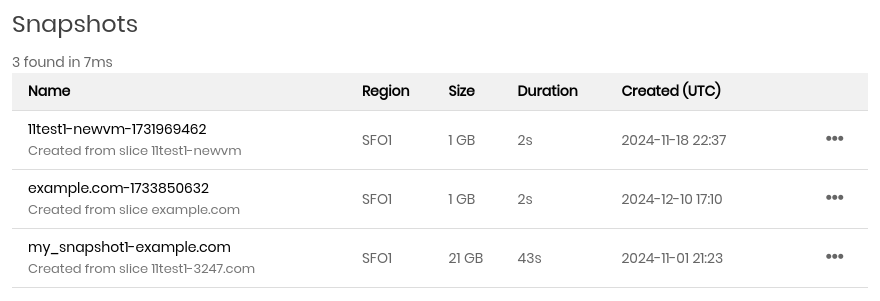
This is a table of all current snapshots under the account. There is the snapshot Name, Region, Size, Duration (how long it took to create), and Created date and time in UTC.
On the far right is an ellipsis dropdown menu. Clicking the menu provides the following options:
- Create Slice
Create a new slice out of this snapshot. This will take you to the Create slice page, with the snapshot image auto-selected for you.
- Restore Slice
Restore the slice with this image. You will be prompted to confirm. Once confirmed, the slice will be rebuilt and essentially “time warp” back to the point this image was created.
Caution
Restoring a slice from a snapshot image will replace all data on the slice with the snapshot image.
- Rename
A form will open prompting you for a new snapshot name. Enter a new name and click Rename to apply the change.
- Delete
Delete a snapshot. You will be prompted to confirm. Once confirmed, the snapshot will be deleted and the billing stops.
Snapshot Billing
Snapshots are $0.05 / month per GB of space used on your disk. For example, if your slice has 100GB disk but only using 40GB, a snapshot will cost $2.00/month. (40 * 0.05 = 2.00).